Select objects with Color-Object List
 | Use Docker > Color-Object List to toggle the Color-Object List on/off. Use it to view and sequence objects in a design. |
|---|
The Color-Object List offers an easy way to select objects and selectively view them. It is synchronized with the design window, dynamically updating whenever you edit.
To select objects by Color-Object List...
- Click the Color-Object List icon to open the docker. A separate icon for each color block and each object in the design appears in order of stitching.
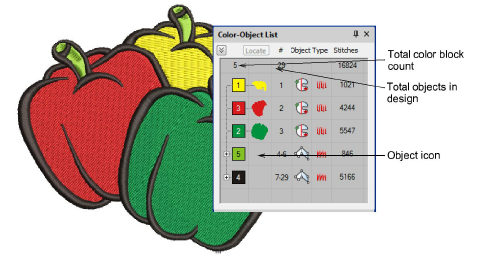
- Click a ‘node’ to open or close a color block and see its components.
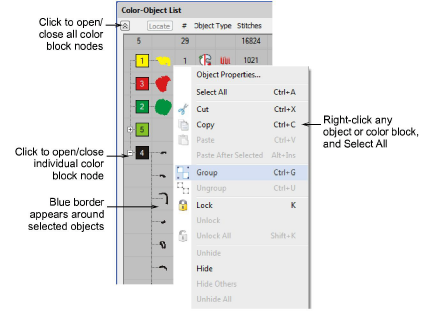
- Click an icon to select a color block and/or individual objects.
- To select a range of items, hold down Shift as you click.
- To select multiple items, hold down Ctrl as you click.
- To select all items, right-click and choose Select All from the popup menu.
- To deselect, click away from the design.
Note
You can also use the Color-Object List to group and lock objects as well as cut, copy and paste, resequence, and branch objects. See Combining Objects for details.