Convert lockstitch to chenille
 | Use Chenille > Moss to create a looped pile look. |
|---|---|
 | Use Chenille > Compound Chenille to automatically digitize chenille shapes with offset borders. Right-click to adjust automatic offset borders. |
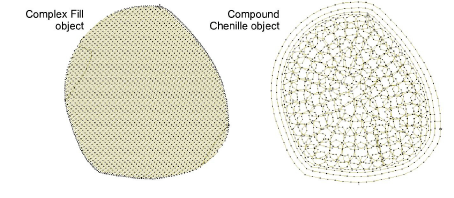
You can convert complex fill and other closed objects to chenille using Compound Chenille. Multiple offset runs are generated automatically from the same boundary.
To convert lockstitch to chenille...
Open a new design using the Chenille template and select a machine format to suit.
Select the complex fill or other closed object.
Select a chenille stitch type – usually Moss.
Select a chenille fill pattern – Square, Double Square or Island Coil. Once you have selected a pattern, the Compound Chenille icon becomes active.
Click the icon. Offset borders and a chenille fill are generated according to current settings.
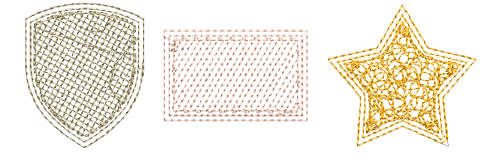
Compound Chenille can be applied to many closed objects, including standard shapes.
- With the object selected, open the Object Properties > Compound Chenille tab to adjust settings.