Lay out program splits on-screen
 | Use Fill Stitch Types > Program Split to create decorative fill stitches where needle penetrations form a tiled pattern. |
|---|---|
 | Use Outline Stitch Types > Program Split to create borders or columns of even width for decorative needle penetration patterns. Right-click for settings. |
You lay out program splits on-screen in a similar way to Motif Fills by using ‘guide patterns’ to scale, space, transform and offset the entire pattern fill.
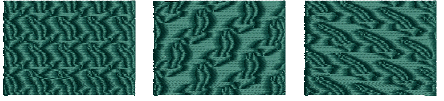
To lay out program splits on-screen...
- Right-click the Program Split icon to access object properties.
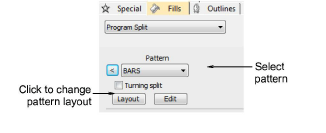
Select a pattern from the droplist. Alternatively, click the arrow button to access the pattern library.
Click Layout. Three blue guide patterns allow you to change the layout.
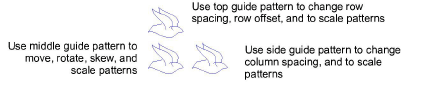
- Adjust the guide patterns to achieve the desired effect:
- Move patterns by selecting the middle guide pattern and dragging.
- Scale patterns by selecting a guide pattern and dragging selection handles.
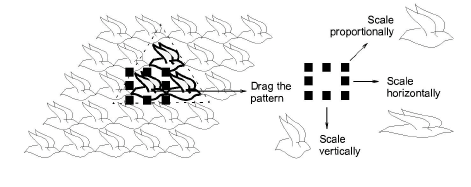
- Rotate patterns by clicking the middle guide twice to display the rotation handles. Click a corner handle and drag to rotate.
- Skew patterns by clicking the middle guide twice, then dragging the skew handles.
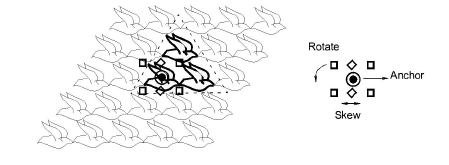
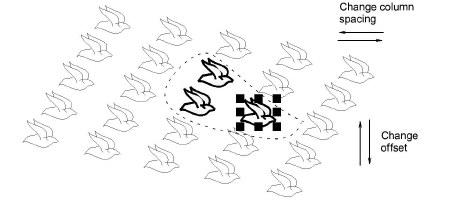
- Change column spacing by selecting the side guide and dragging it left or right.
- Change column offset by selecting the side guide and dragging it up or down.
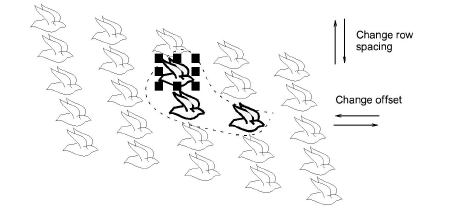
- Change row spacing and offsets in the same way as columns.
- Press Enter to apply.